
The CSS based template makes use of several ssi files. These files are used for each unique element of the discipline. This means that one template can be used to control the look and layout of the entire discipline section of the web site.
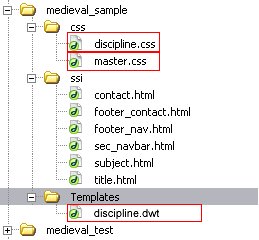
To set up a new discipline area, or to move a discipline area to the new format there are a couple of steps that you as a member of the webmaint group must first perform. These steps are detailed below. An image of what the directory structure looks like is located below the steps.
- The first step is to create a directory where work on the discipline area can be done. This usually means that you will create a directory called [area name]2 or [area name]_new. You can do this step in Dreamweaver or in UNIX. Either method will work.
In UNIX, set the permissions for the directory.
The sticky bit for the directories should be on (i.e., group execute should read "s") and have permissions that read drwxrwsr-x. If you are the owner, you can set the sticky bit. The attributes for all files should be rw-rw-r-- .
Make sure that group permissions are either dpisr or dcisr depending on the subject area. As owner, you can change these in UNIX. Open the Files program and go to the top of htdocs. Select "o" for c[o]mmand and then enter using the following syntax:
chgrp -R dpisr account2
This means:- chgrp - change group
- -R - recursively, for the directory and files within the directory
- dpisr - set group permissions to dpisr
- account2 - permissions are set for the account2 directory.
- Create a new directory in your area called ssi.
- Copy the files in the /Templates/ssi_subject/ directory to the ssi directory that you just created. These files are what controls the navigation inside of your area, and all of the main titles that appear on every page.
- Now you need to create a directory called css in the new area. Set group permissions for this directory to webmaint - see above. This time you will need to be within the account2 directory before you enter the syntax given in step 1.
Then navigate to this new directory and create hard links to the master.css and discipline.css files.ln /libweb/htdocs/css/master.css master.cssln /libweb/htdocs/css/discipline.css discipline.css
- You also need to create a directory called Templates. Make sure that the T is capitalized and that group permissions are set to webmaint. Now go to the Templates directory you just created and create a hard link to the discipline template.
- ln /libweb/htdoc/Templates/discipline.dwt discipline.dwt
- Copy the files from the current live site into this directory so that the new template can be applied. Note: If you are converting a site from one already based on a previous version of the template, do not copy over the side_include and Templates directories or the template.css file.
- Make sure that all files except the CSS and template files are readable and writeable by the correct group, and that world read is enabled.
- If the area you are working on contains content subdirectories, then each subdirectory will need to have its own css, ssi, and Templates directories (except Documents directories that do not contain any html files). Create as in steps 1 - 6.
Alternatively, ask the owner if the subdirectories can be eliminated and the files be integrated into the top level of that discipline area. If so, copy the files to the top level and alert the converter that some links will need to be fixed. - While the directory is being converted, it should not be available to the public. So copy the .htaccess file from the /staff/private/ directory into the directory being converted.
- You are done.
The Directory Structure
Files that are boxed in red are hard links